Rolling out These steps use the new HomecareOS screens, which are being switched on agency by agency. If your screens look different, call us on 01905 674704 and we will walk you through it.
Before you start
- Changing a visit needs a role that can edit visits. Other roles see the card read only.
Steps
Open the visit
On the Rota, click a visit. On the Visits tab, choose a visit in the list. On a laptop the card opens beside the page; on a phone it fills the screen. Choose Open as a page to give it the whole page.
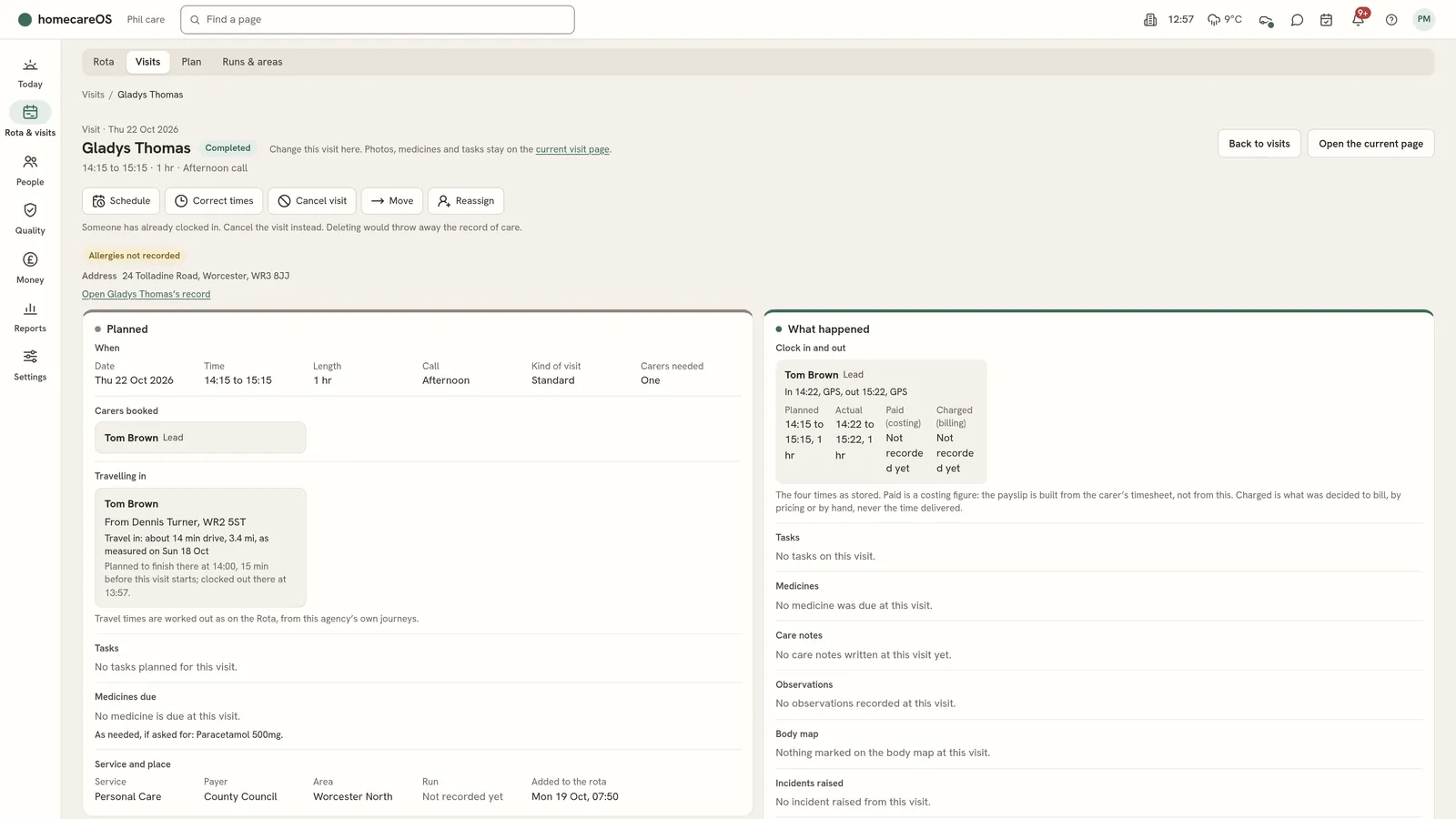
Read the three parts
Planned: when, the carers booked, travelling in, tasks, medicines due, service and place, and notes for the carers. Happening now shows only while a carer is there. What happened: clock in and out, with planned, actual, paid and charged times, then tasks, medicines, care notes, observations, body map, incidents and family sign-off.
Check it has reached the carer's phone
Before the visit, each booked carer shows On their phone with when it was confirmed, or Not on their phone yet with when their phone last checked in.
Correct clock times
Choose Correct times. Change each carer's clocked in and clocked out date and time, and give a reason. Tick Mark the visit complete once every carer is clocked out if it should be. The reason is kept on the audit trail.
Change the date or time
Schedule changes the date, start and finish. Move does the same and always asks for a reason, which is kept with the move. If the new time is usually a different call, HomecareOS asks which call it should be.
Change the carer
Choose Reassign, then Add a carer or Replace a booked carer who has not clocked in. Who is free for this visit lists free carers first, ranked, with their drive, how often they have visited the person and their hours this week. Choose Send beside the carer you want.
Take a carer off
Take off removes a carer who has not clocked in. If nobody is left on the visit, it needs cover.
Cancel the visit
Choose Cancel visit, then the reason and the charge. See Cancel a visit.
Put the record right
Choose Corrections to correct A task, record A missed dose given but not recorded, Add a note written up by the office, or Correct a note. Each asks why, and the reason is kept.
Read the change history
Open Change history at the bottom to see who changed what, and when. What this history may not show lists the changes not recorded there yet, such as carers dragged on the rota.
Good to know
- Details changes the service it is billed as, the kind of visit, the call, whether it needs a driver, and the address if the visit is not at their home.
- After a save, HomecareOS offers Undo where the change can be undone.
- Delete in error is only for a visit that was never care. It is not offered once someone has clocked in, once the visit is completed or missed, or once it is on an invoice. Cancel instead.
- Photos stay on the current visit page, linked from the card.
Was this helpful?
Thank you. Glad it helped.
Sorry about that. Tell us what was missing and we will improve this guide.