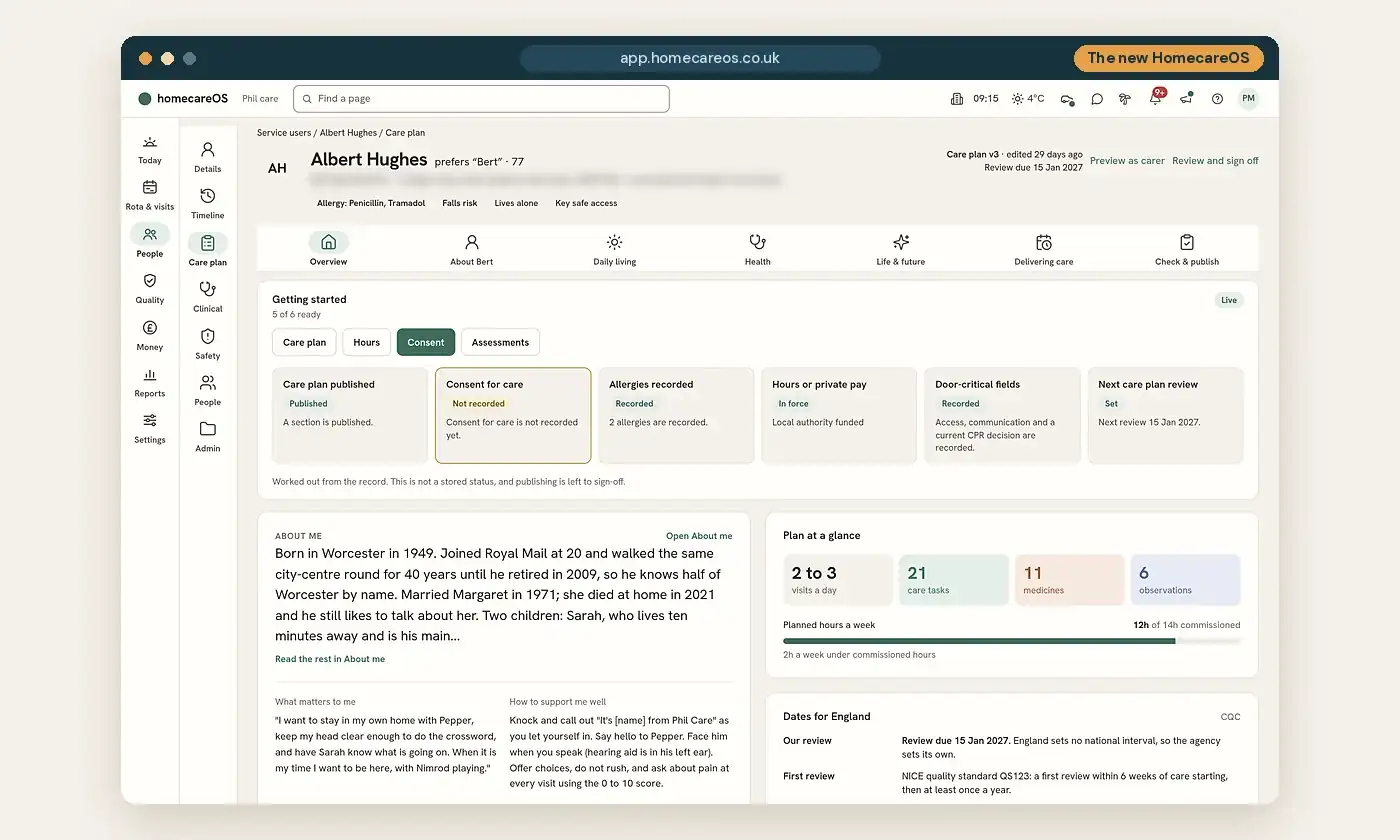
Ask three registered managers what a good care plan asks and you will get three different answers. One agency wants a short, plain About me. Another has its own way of describing how someone likes to be supported. A third has spent years tuning the wording so carers actually read it.
That is why the biggest change in HomecareOS this fortnight is a care plan template your agency controls. You choose what every plan asks, how it reads and when a change goes live, and the parts that keep people safe stay locked in place.
Make your care plan template uniquely yours
Your care plan template is the list of sections and questions every plan in your agency asks. It starts as the HomecareOS standard for your nation, which is about 20 sections and over 200 questions, and it is yours to shape. You find it under Settings, then Care plan template.
- Show or hide any section or question. Each one has a switch that reads Asked or Hidden. If a section does not suit the way you work, hide the questions that do not fit, or the whole section.
- Keep the safety core. Some questions are locked and always asked: allergies, medicines support, covert medicines authorisation, risks with a plan for each, consent and capacity, communication and language, contacts and what happens if a visit is missed, getting into the home, resuscitation and advance care wishes, and the next review date. Wales and Northern Ireland add items of their own.
- Work in a draft, then publish once. Your switches save to a draft straight away, with Undo. Nothing changes on any plan until you publish. Publishing applies the template to all your plans together, and your review dates do not move.
- Never lose what was written. Hiding a question does not delete its answer. An answer stays on the plan, in amber, until someone moves or clears it.
- Choose how plans read. In Settings, Agency, Details, pick first person, third person or plain headings. In the third person, About me becomes About Ann. The choice follows the plan onto the screen, the printout and the carer's phone, and nothing already written is rewritten.
Only the owner or the registered manager can change the template, so what your plans ask stays in senior hands. Everyone with access to Settings can see it. Step by step, it is in the help centre: manage your care plan template and choose how care plans are written.
Care plans that are quicker to get right
The template decides what a plan asks. A handful of other changes make the plan itself easier to keep accurate.
- Start a plan from the person's record. If someone has no plan yet, one button starts it, then you write each section as a draft. Nothing reaches carers until it is published. See build a care plan.
- One Visits page. The week appears as a single picture by need and payer, with an icon on each visit that needs two carers.
- Extra visits. A weekly shop, a visit to church or a regular appointment can now sit beside the usual calls with its own name, days, time and tasks, and no medicines. Carers see the name on the rota and in the app. See add an extra visit.
- Medical history, kept in versions. A box to type in first, with every earlier version kept, shown on the plan, in print and in the carer app.
- Care needs you can edit. Edit the current assessment and it is filed as the next version, with the earlier one kept as it was.
- Terms before sign-off. Where you have uploaded client terms, sign-off waits until the office records who agreed to them, how, when and which version.
- Tell carers when it matters. When you publish, Tell carers is ticked for you if tasks, medicines, risks or access have changed. Leave it unticked for a spelling fix.
- No known allergies, recorded properly. It is now a recorded fact, with who confirmed it and when, not just an empty list. The carer app shows it too.
- Legal and capacity, on one screen. Under Safety, Legal and capacity now shows CPR, lasting power of attorney, DoLS, an advance decision, an advance statement and the Mental Health Act as cards. Each card shows what is in force now, with its signed paper, and earlier decisions folded underneath. You can drag a file onto a card, or onto Consent, Advanced care, Referrals, Transfers of care, the care plan's ReSPECT form and Medical history. A short confirm asks what it is filed as, what it is linked to, and whether to show it to carers. Replacing a paper keeps the earlier one. See legal and capacity.
Carers hear about changes, and every carer sees the medicines round
HomecareOS now tells carers about changes to visits in the next 7 days: added, moved, cancelled, taken off them, a different length, a second carer, new access details or an updated care plan. Many changes made together go as one message. You set quiet hours for the agency and can give one carer their own hours, for a night carer. A carer the app cannot reach can be sent the same message by text. Choose whether carers can mute far-off changes, and whether short-notice changes ask for a tap on Seen. The settings are in tell carers about changes to their visits.
Two medicines changes go with it. When two carers are at a visit, both now see its medicines round, and a dose given by one shows as given. And every medicine says who gives it: a carer gives it, a carer prompts, they manage it, or family give it. Medicines the person manages, or family give, are listed for carers but are not on the eMAR. See check medicines on the MAR chart.
Cancellations, pay bands and expenses
Money gets more flexible without getting more manual.
- Cancellation rules. Decide once how much notice sets the client charge and the carer pay, with a rule for each reason. On each cancelled visit, HomecareOS suggests the charge and each carer's pay, and you can change it with a reason. Paid cancellations flow through to timesheets and the pay run. See set your cancellation rules and carer pay.
- Charge bands and pay bands. Set when a visit counts as early, evening or weekend, give each service its own band prices, and give each pay grade early, late and weekend rates. Bank holidays and special days have their own pay rules, built from your nation's official list. Nothing changes until you enter a band price or rate. See charge bands and pay bands.
- Carer expenses. Carers add an expense with a photo of the receipt, on the visit it belongs to or on its own. The office approves it and chooses whether to repay the carer and bill the client. See carer expenses.
Forms, your website and your own email address
- A form builder you can see as the carer will. Build a form, switch between Phone and Printed, and add date, signature and photo questions. Send it to carers, to families and the people you support, or to job applicants, in three steps. A ready-made library gives you a start. See build a form and send it.
- Forms on your own website. Switch on a complaint, compliment, care enquiry or concern form and add it to your site by link or code. Each lands in the right place: a complaint becomes a complaint with its respond-by date set, an enquiry becomes a referral. See put forms on your website.
- Email from your own address. Invoices and recruitment emails can come from your agency's own domain. See send email from your own address.
Recruitment, induction and training records
If your agency uses the recruitment portal, adverts can now go on a public jobs board at jobs.homecareos.co.uk, with a share panel for each advert. Offer letters and contracts can be signed online with a typed name, and the signed copy is filed to the applicant. The applicants list now shows active people by default, including anyone on hold. Tick Show inactive applicants to see people you have deactivated, or who have withdrawn or been rejected. On an applicant's page, Deactivate asks why, keeps everything on file, and their portal says their application is no longer being considered. Reactivate puts them back at the stage they had reached. A hired applicant cannot be deactivated. See deactivate an applicant.
For new carers, each agency now has its own induction checklist, copied from the HomecareOS standard for its nation and changed to suit: edit, add, reorder, remove and put back. See set up your induction checklist.
On a carer's record, under Training, you can drop a certificate on the course it belongs to, or use Add a course not listed. After every upload you are asked which course it is for, the date completed and when it expires, and the expiry fills from the course's renewal rule. A later certificate for a course already done is a renewal: the new record is added and the earlier one is kept. A certificate uploaded to a carer's documents still marks the course done once you choose which course it is for, and a Certificates to match list catches the ones uploaded before. Quality > Staff compliance > Training now opens with Expired and due soon. Coordinators can record training, as well as owners, registered managers, care managers and HR. See record a training certificate. Confidential documents are set once by type, with one-click exceptions.
Evidence for commissioners
A new Neighbourhoods report shows each area over a chosen period: hours delivered against hours commissioned, how many different carers each person sees, travel time per hour of care, and visits delivered, late and missed, with a PDF for tenders. On each person's record, a Familiar faces card shows how many of their visits are with their usual carers, and Today flags a new face ahead of a visit.
Still coming soon
The HomecareOS phone system is live. Caller ID matching and recording of answered calls are coming soon, and we will say so here when they arrive.
Adding your own questions and prompts to the care plan template is also still to come. You can already show or hide any section or question, and choose how plans are worded.
If you would like to see any of this on your own plans, book a 15-minute demo.